How to manage Templates in PowerPack?
PowerPack offers a wide range of ready-to-use Page & Row Templates with its cloud-based Template Library. Let’s take a look at how you can manage these templates.
Page Templates
When you click the Templates tab in PowerPack settings (WP admin > Settings > PowerPack > Templates), you will see all the available page templates.
You can use the Filters and Search feature to find your desired template. You can also preview a template before using it on your page. To do this, simply click the thumbnail image and it will open up a preview window.
To use a template on the front end, click the Activate button and wait for the process to complete. Clicking the Activate button downloads the template’s data.
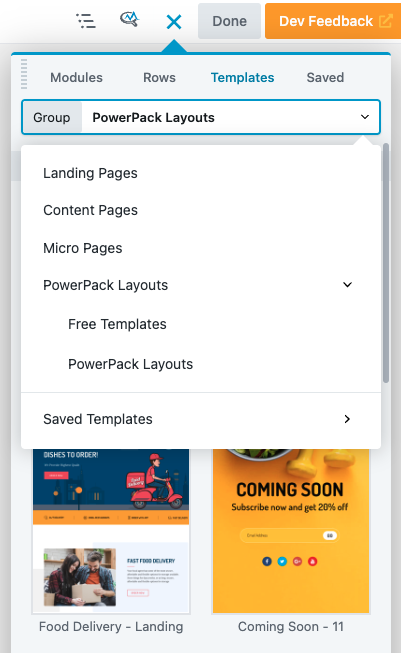
On successful activation, you will be able to use the Template on the front end using Beaver Builder’s Template section.
Row Templates
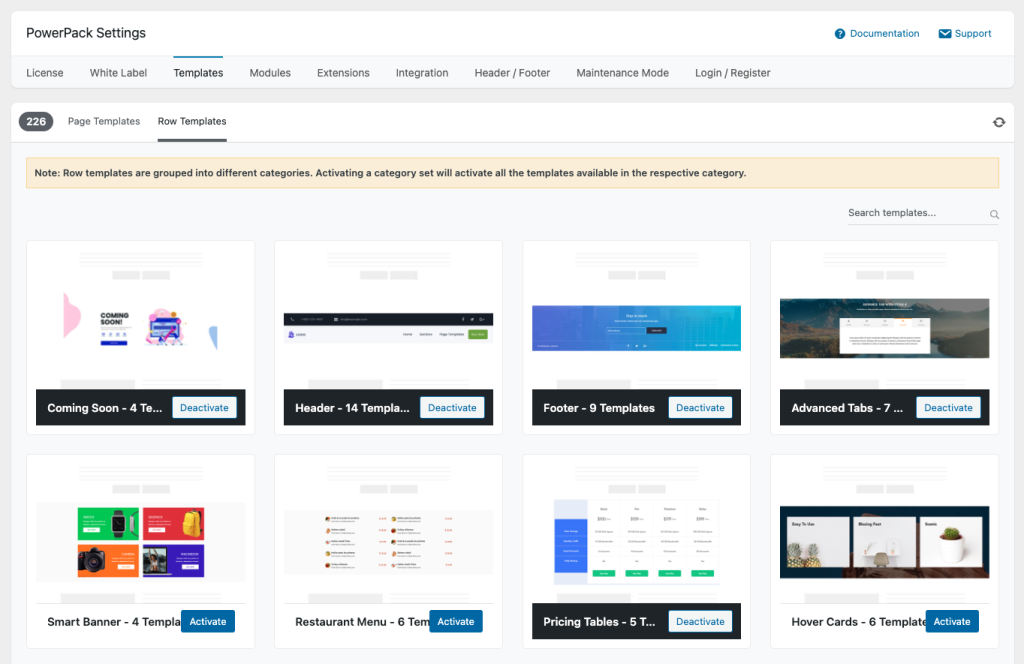
These row templates are divided into 12 categories.
Row templates screenshot below shows the number of templates available within that category. Activating a category will load a set of row templates to be used in the builder.
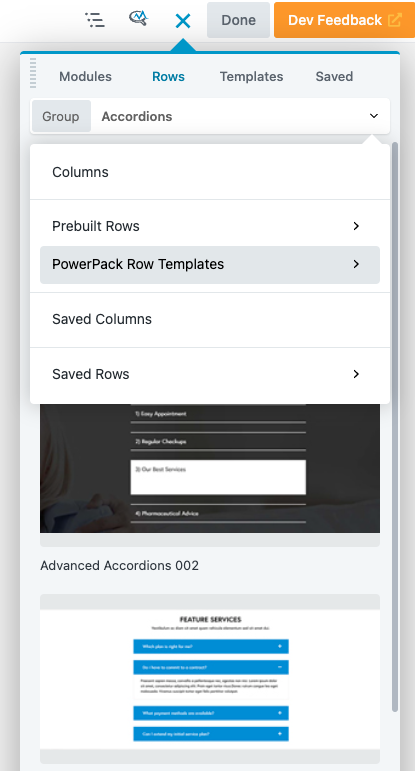
After activating, these row templates will appear in the PowerPack Row Templates section (for example, templates for Accordions as shown below.)